
Bill Search Tips
The Bill List page provides several ways to narrow the list of bills by filtering or searching bill text. Bill Information Reports are another method of finding bills by a variety of criteria.
Bill List - Default View
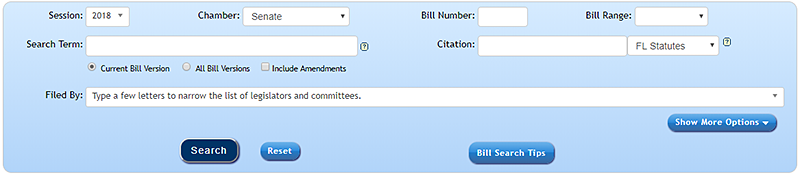
The Bill List provides several options for filtering the list of bills and searching bill text. By default, the panel shows several fields for conducting a basic search.
- The Session and Chamber filters affect the other fields. The options in the "Filed By" filter change based on the selected chamber and session.
- Enter a Bill Number to search for bills containing that number. For example, enter "22" and get returns for bills numbered 22, 122, 220, 222, etc.
- Use the Range dropdown to limit the bill number range for your search.
- Enter a search term in the search box. Bills evolve into different versions as they are amended throughout the legislative process. "Current Bill Version" is selected by default and will only return search results for the latest version of bills in the selected session. Choose "All Bill Versions" to search for the term in all versions of all bills in the selected session. Choose "Include Amendments" to also search all amendment text. The "All Bill Versions" and "Include Amendments" options only apply to search terms. The field accepts advanced search terms.
- Use the Citation search field to determine which bills (latest version) cite sections of the Florida Statutes or Florida Constitution. Citations are formatted as “chapter.section”. If you add a number without a “.”, such as “120”, the search engine will automatically add a “.” at the end, so the search will return results for all bills that cite sections in Chapter 120—including bills creating new sections in Chapter 120.
- Use the "Filed By" dropdown to filter the bill list by legislator or committee based on the selected session and chamber.
Bill List - Show More Options
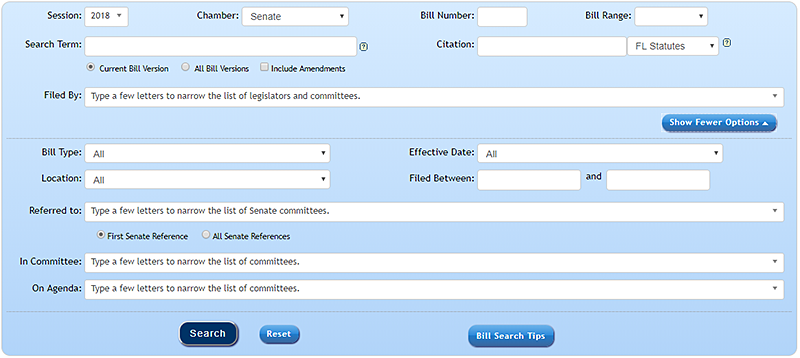
Click the "Show More Options" button to display additional filters. Click the "Show Fewer Options" button to hide the additional filters. The filters narrow the bill list based on the current version of each bill.
- Use the Bill Type dropdown to narrow your search to a specific type of bill, such as a joint resolution.
- Use the Effective Date dropdown to narrow your search to bills that go into effect during a specific month or event.
- Select a Bill Location to limit the search to bills in a specific Location, such as "On Special Order Calendar" or "Became Law".
- Enter Filed Between dates to find bills that were originally filed between the specified dates.
- Select a Committee from the Referred To dropdown to find bills that are referred to a the selected committee. The First Reference radio button is selected by default. This will return results for bills with a current first reference of the selected committee. Click the All References radio button to see all bills currently referred (in any order) to the selected committee.
Advanced Search Features
- Stemming - Your search result may contain suffixes of the word used. This is called stemming. For example: If you search for the word bicycle, your search will return a broad result on bicycle, bicycles, and bicycling.
- Wildcards - If stemming does not return a broad enough result, use an asterisk (*) as a wildcard at the end or beginning of a word, or for a portion of a word. For example: If you type govern* in the Search box, the search will return a broad result on Govern, governs, governed, governing, government, governmental, governor. Phrase Searches - Similar to multiple-word searches, except words are not separated by a comma. When federal census is entered into the search box, returns contain both federal and census.
- Quotation Marks - Put quotation marks around multiple words for results with the words together. When "federal census" is entered into the search box, returns contain federal census together.
-
Boolean Operators - Specify words, exclude words, or add complex combinations of words to be queried by using Boolean Operators.
Boolean Operators should be represented by words (and, or, not) and not symbols (&, |, ^).
- AND logic retrieves records in which all terms are present. A search for dog and cat will return records with both dog and cat. The more terms you combine in a search with AND logic, the fewer results you will retrieve. A search for dog and cat and fish will result in fewer returns than just dog and cat.
- OR logic retrieves all the unique records containing one term, the other term, or both of them. OR logic is most commonly used to search for synonymous terms or concepts, such as "college or university". A search for dog or cat will result in records that have at least one of the terms.
- NOT logic excludes records from your search results. A search for dog not cat will result in records that mention dog but do not mention cat. Be careful when using NOT. The term you want may be present in records that also contain the word you wish to avoid.